Streamline Your Shipping with Voila's Smart Shipping
Voila's Smart Shipping lets you define rules for automatically selecting the best delivery service for each order. Set criteria like package size, weight, value, and destination, and Voila does the rest! This guide walks you through setting up these rules.
Last updated 12 months ago

Accessing Smart Shipping
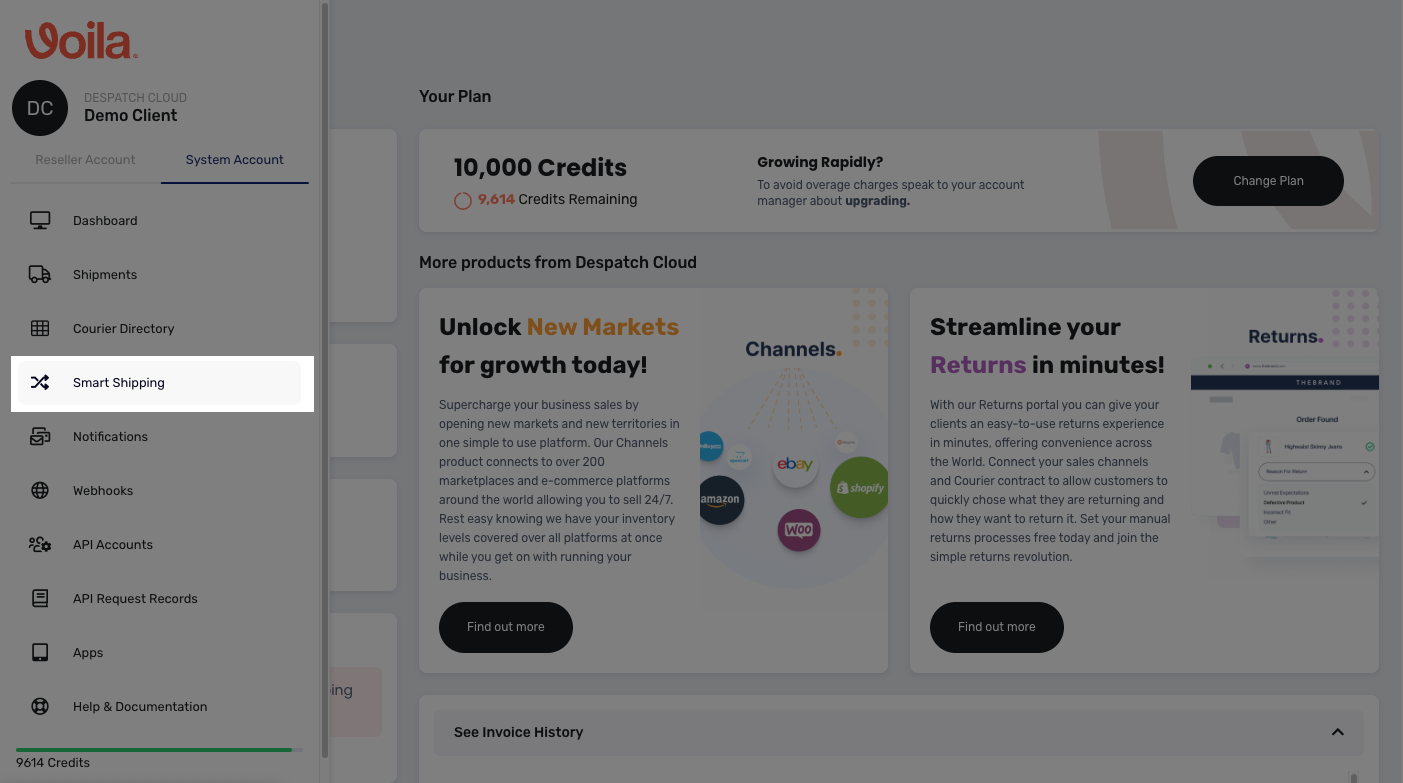
Click the "Smart Shipping" button in the left-hand menu.
Click to Maximise the Image.

Creating a Rule Group
Rule groups help organise your smart rules. For example, you might have "Standard" and "Express" groups. Subsequently, you can create sets of rules within these designated groups.
Before creating a smart rule, you need to establish a rule group. To do this, follow these steps:
Steps:
Select your API Account.
Click "Create" then "Create Rule Group."
Name your group and click "Create Group."
Click to Play/Pause or Maximise the Video

Creating a Smart Rule
Steps:
Select your API Account.
Click "Create" then "Create Smart Rule."
Now, let's configure your rule:
Rule Priority: Determines the order rules are applied, the rule with the lowest number for priority will be applied first when the filter criteria match. (0 = Highest Priority - 5 = Lowest Priority)
Rule Name: Give your rule a descriptive name.
Group Name: Choose the group for this rule.
Next, define the rule's logic:
Set Parameters:
Click "Set Parameters."
Choose a "Parameter Type" (e.g., Price, Weight, Channel). Available fields will change based on your selection.
Enter the parameter values (e.g., Price £5-£10, Weight 1-3 KG, Channel Amazon, Supported Country UK).
Click "Add Parameter" for multiple criteria.
Set Output Service:
Click "Set Output Service."
Select the "Courier," "Auth," and "Courier Preset" to use when the rule's criteria are met.
Configure Failover Service (Optional):
Set up a backup courier and service in case your primary choice is unavailable. This ensures smooth operations.
Finalise and Create Rule:
Click "Create Rule."
Your new rule will appear under its group. You can activate/deactivate, edit, or delete it as needed.
Click to Play/Pause or Maximise the Video

A Quick Summary of Rule Parameters
Here's a breakdown of the available rule parameters:
Booking Schedule Management:
Booking Day/Time: Control booking schedules.
Exclude/Include Days/Times
Pricing and Weight Controls:
Value/Parcel Weight: Set minimum and maximum values.
Shipping Charge: Set minimum and maximum values.
Parcel and Order Quantity Controls:
Parcel Count: Set minimum and maximum values.
Parcel Dimension Controls:
Dimensions (Height, Width, Length, Girth, Volume): Set minimum and maximum values.
Location and Identification Controls:
Postcode: Include/Exclude specific postcodes.
Keywords/Tags: Include/Exclude specific keywords/tags.
SKUs: Include/Exclude specific SKUs.
Channels: Include/Exclude specific sales channels.
Supported Countries: Select eligible shipping destinations.
Requested Shipping Service: Match service names using:
Equals/Starts With/Ends With/Contains
Reference/Order ID: Match reference/order ID values using:
Equals/Starts With/Ends With/Contains
Want to master Voila's rule parameters? Our comprehensive guide has you covered. Keep reading for detailed instructions.

Rule Parameter Descriptions
This section details the various rule parameters available, allowing you to fine-tune your shipping and order processing workflows for optimal efficiency and accuracy.
Booking Schedule Management
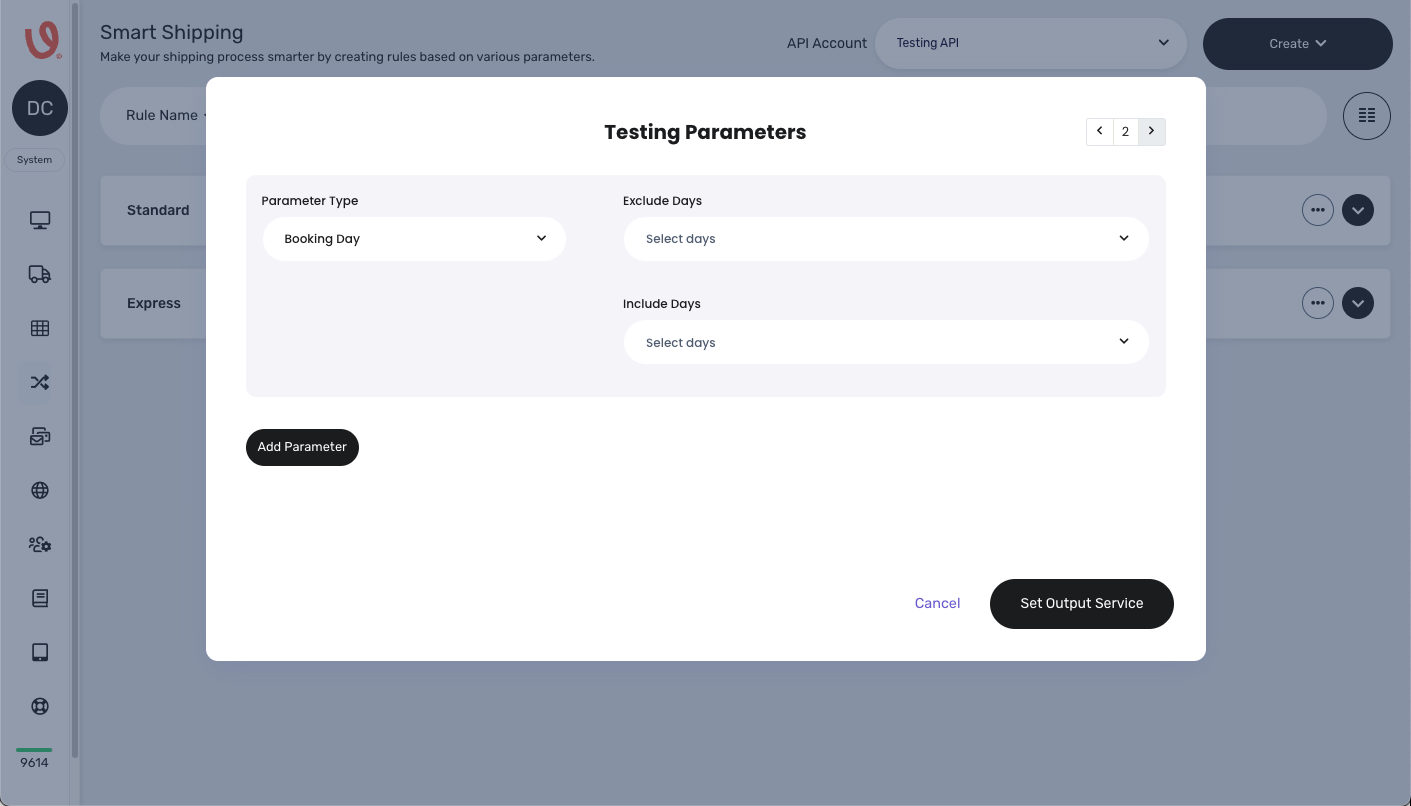
Booking Day: Achieve flexible and accurate order processing timelines with our booking schedule management, giving you complete control.
Exclude Days: Prevent orders from being processed on designated dates.
Include Days: Specify available booking slots based on your business requirements.
Click to Maximise the Image.
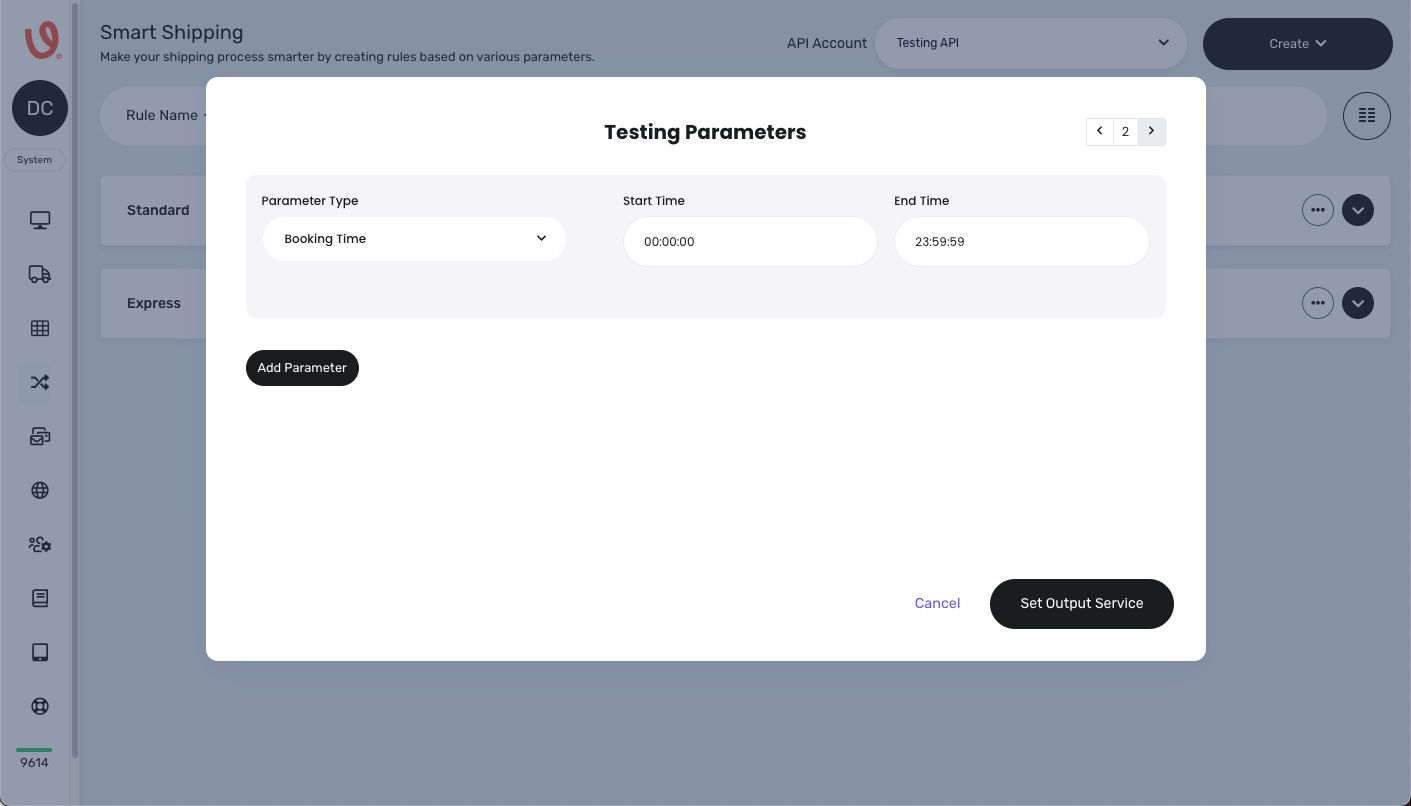
Booking Time: Define the time window for order bookings to ensure efficient scheduling and order processing management.
Start Time: Set the earliest permissible booking time.
End Time: Set the latest permissible booking time.
Click to Maximise the Image.

Pricing and Weight Controls
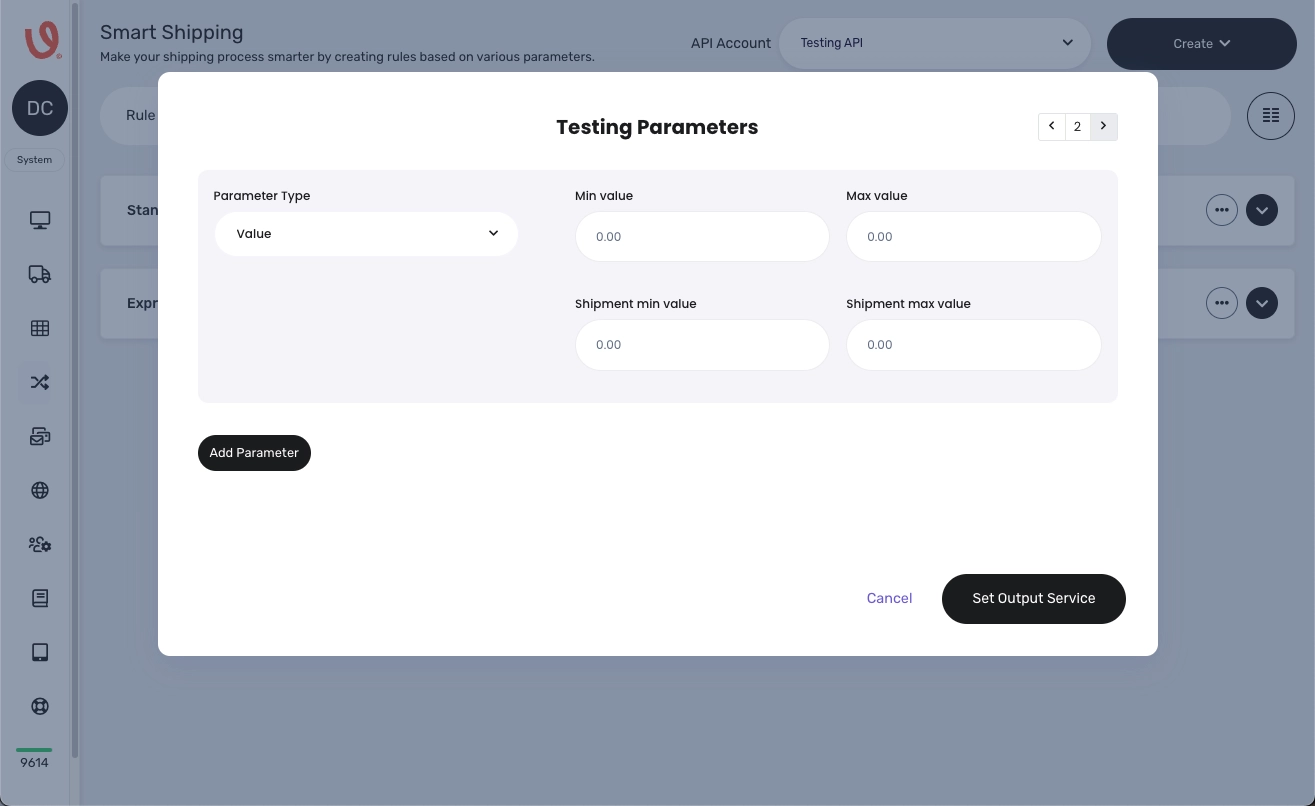
Value (Order Price): Control shipping price criteria based on order value thresholds ensuring the accurate calculation of shipping costs.
Min Price: Define the minimum order value for shipping price calculation.
Max Price: Define the maximum order value for shipping price calculation.
Click to Maximise the Image.
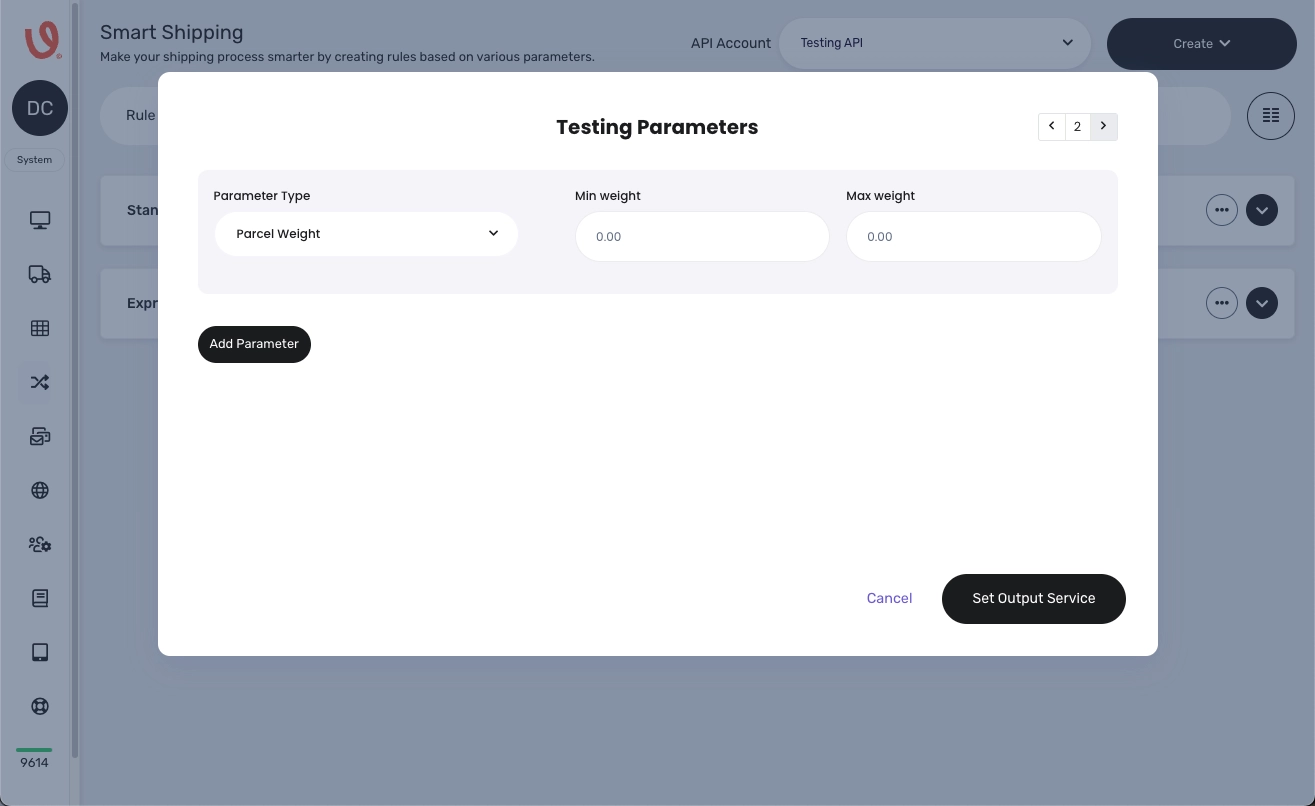
Parcel Weight: Ensure compliance with shipping service weight restrictions.
Min Weight: Set the minimum allowed parcel weight.
Max Weight: Set the maximum allowed parcel weight
Click to Maximise the Image.
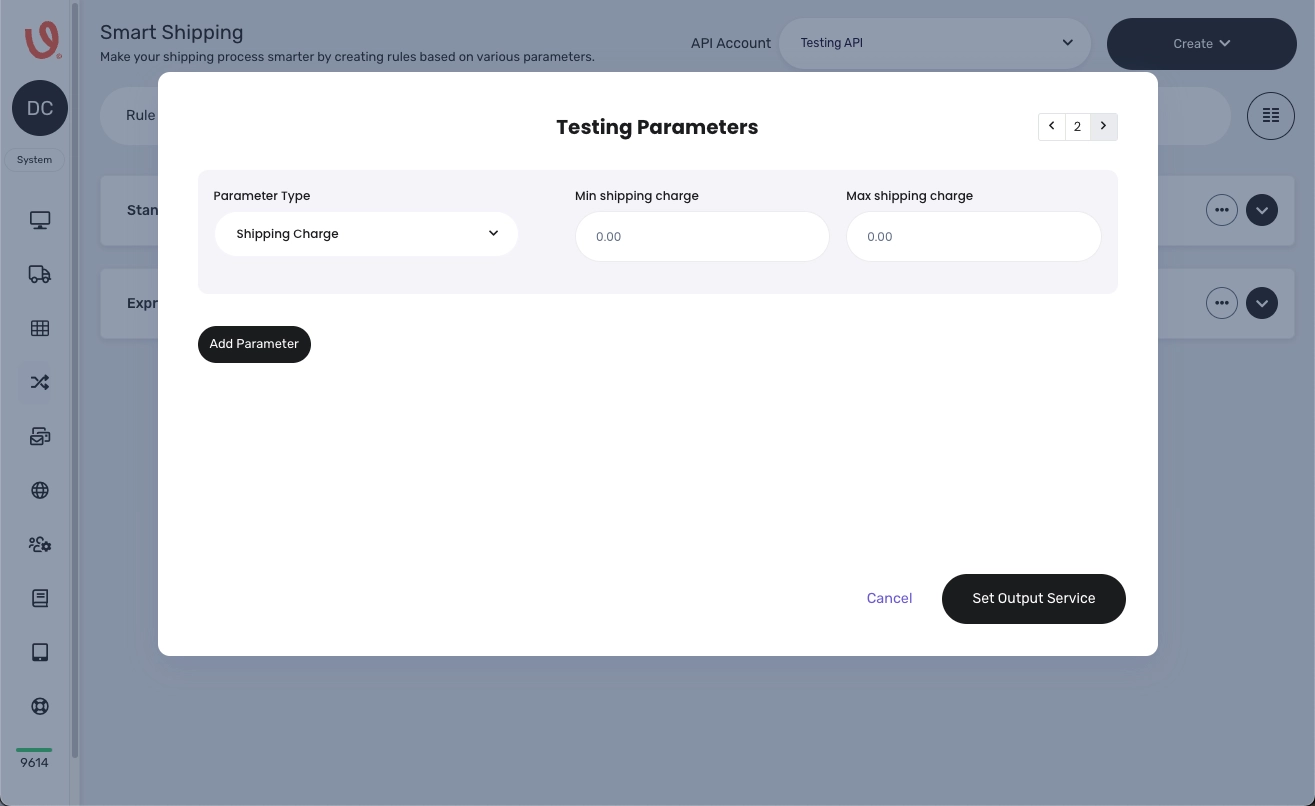
Shipping Charge: Control shipping charge criteria based on predefined thresholds.
Min Shipping Charge: Set the minimum shipping charge threshold.
Max Shipping Charge: Set the maximum shipping charge threshold.
Click to Maximise the Image.

Parcel and Order Quantity Controls:
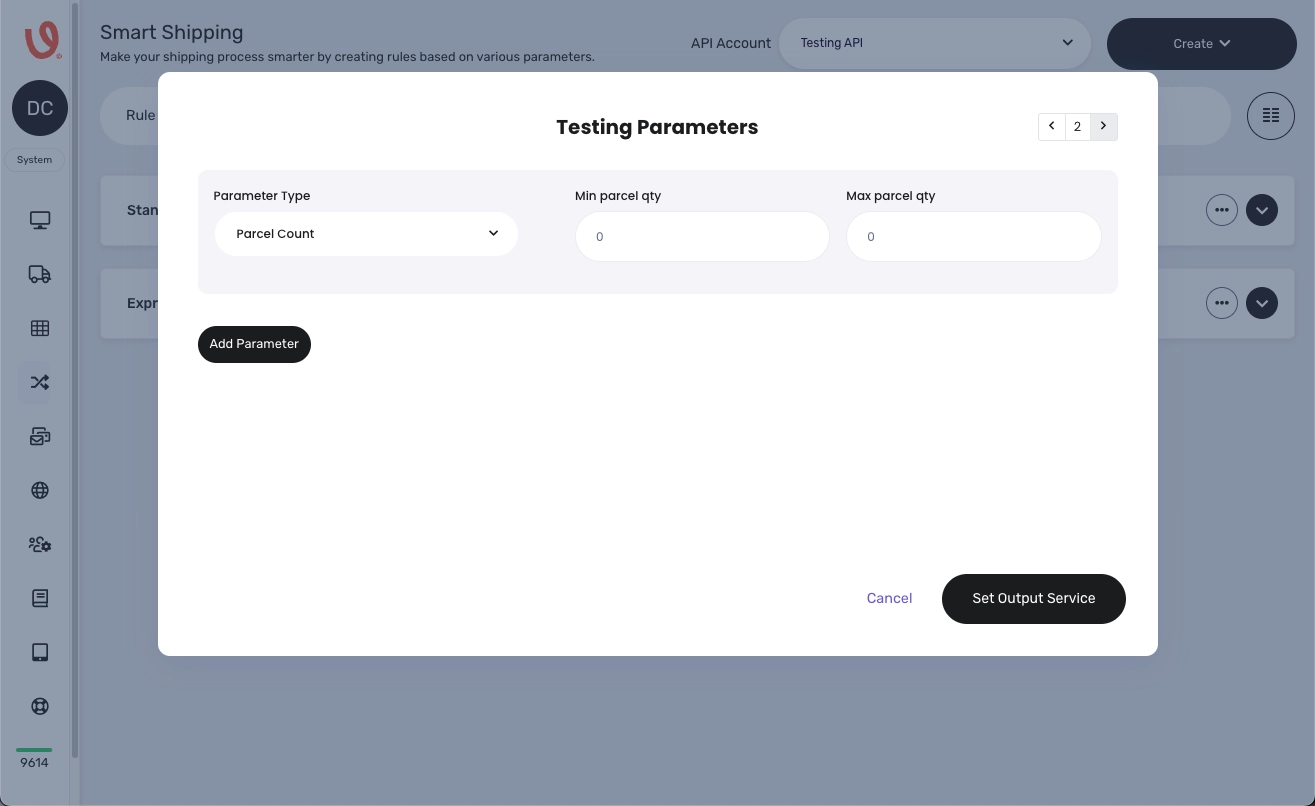
Parcel Count: Manage order processing based on parcel quantity.
Min Parcel QTY: Set the minimum parcel quantity per order.
Max Parcel QTY: Set the maximum parcel quantity per order.

Parcel Dimension Controls
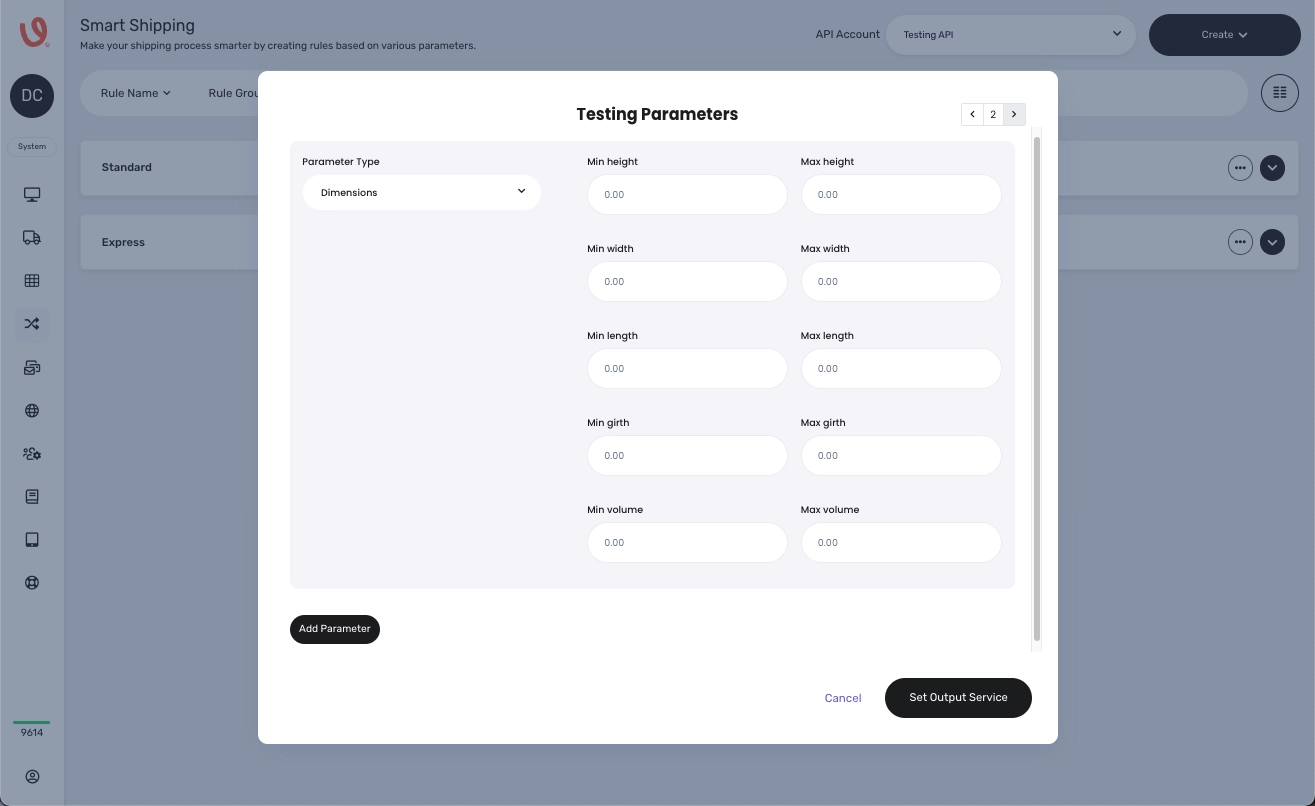
Dimensions: Ensure compliance with shipping service size restrictions.
Min/Max Height: Define the allowable parcel height range.
Min/Max Width: Define the allowable parcel width range.
Min/Max Length: Define the allowable parcel length range.
Min/Max Girth: Define the allowable parcel girth range.
Min/Max Volume: Define the allowable parcel volume range.
Click to Maximise the Image.

Location and Identification Controls
Postcode: Route orders accurately based on postal code criteria.
Exclude Postcodes: Prevent shipping to specified postcodes.
Include Postcodes: Allow shipping to specified postcodes.
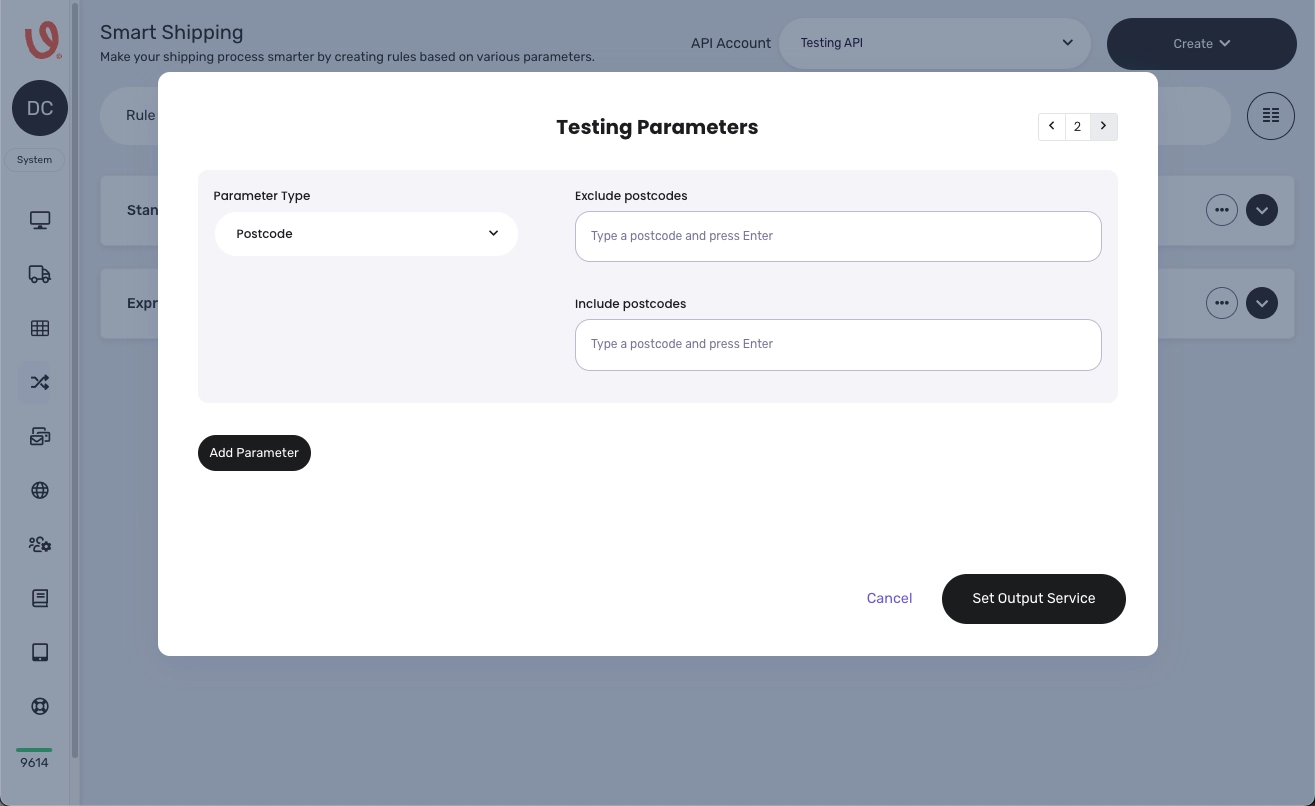
Click to Maximise the Image.
Keywords: Filter orders using keywords for targeted processing.
Exclude Keywords: Prevent processing of orders with specific keywords.
Include Keywords: Process orders containing specific keywords.
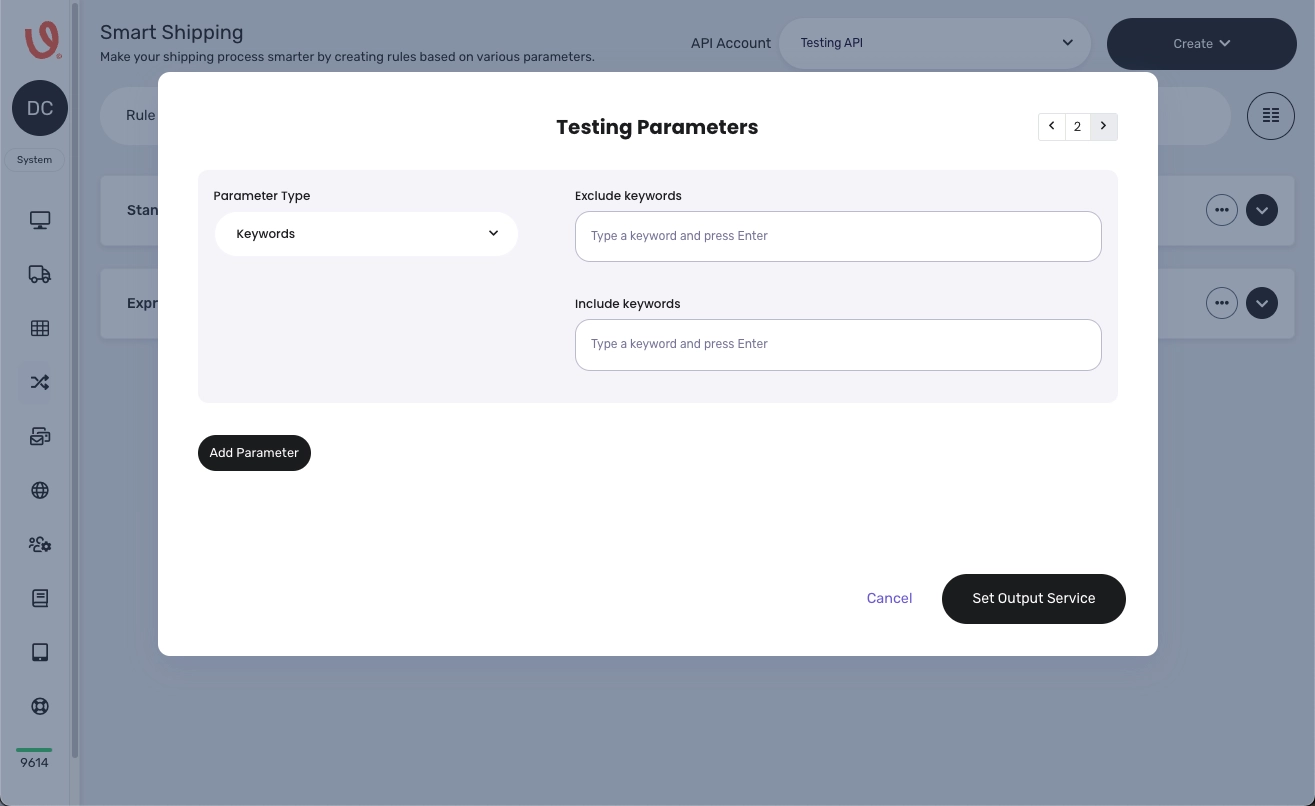
Click to Maximise the Image.
Tags: Categorise orders using custom tags for efficient processing.
Include Tags: Process orders containing specific tags.
Exclude Tags: Prevent processing of orders containing specific tags.
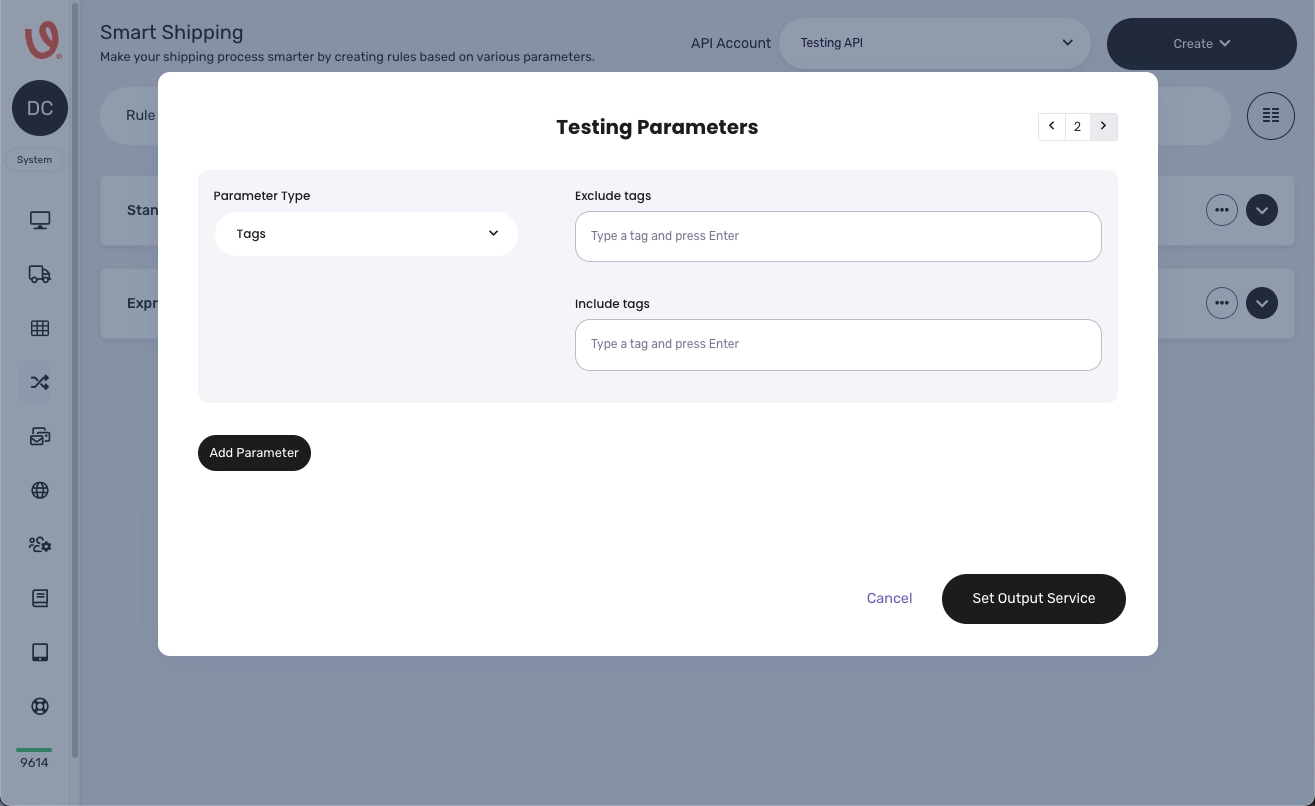
Click to Maximise the Image.
HS Codes are standardised international product classification numbers used for customs and trade. They ensure the accurate identification of goods for taxation and compliance. In shipping rules, businesses use HS Codes to:
Comply with regulations:
Include: Products requiring specific documentation or licenses for destinations.
Exclude: Restricted or prohibited items in certain countries.
Optimize tariffs:
Include: Items eligible for preferential tariff rates.
Exclude: Products with high tariffs in target regions.
Manage shipping restrictions:
Exclude: Hazardous or perishable goods.
Apply product-specific rules:
Include: Tailored shipping for particular product categories.
By strategically including or excluding HS Codes, businesses achieve targeted and compliant international shipping practices.
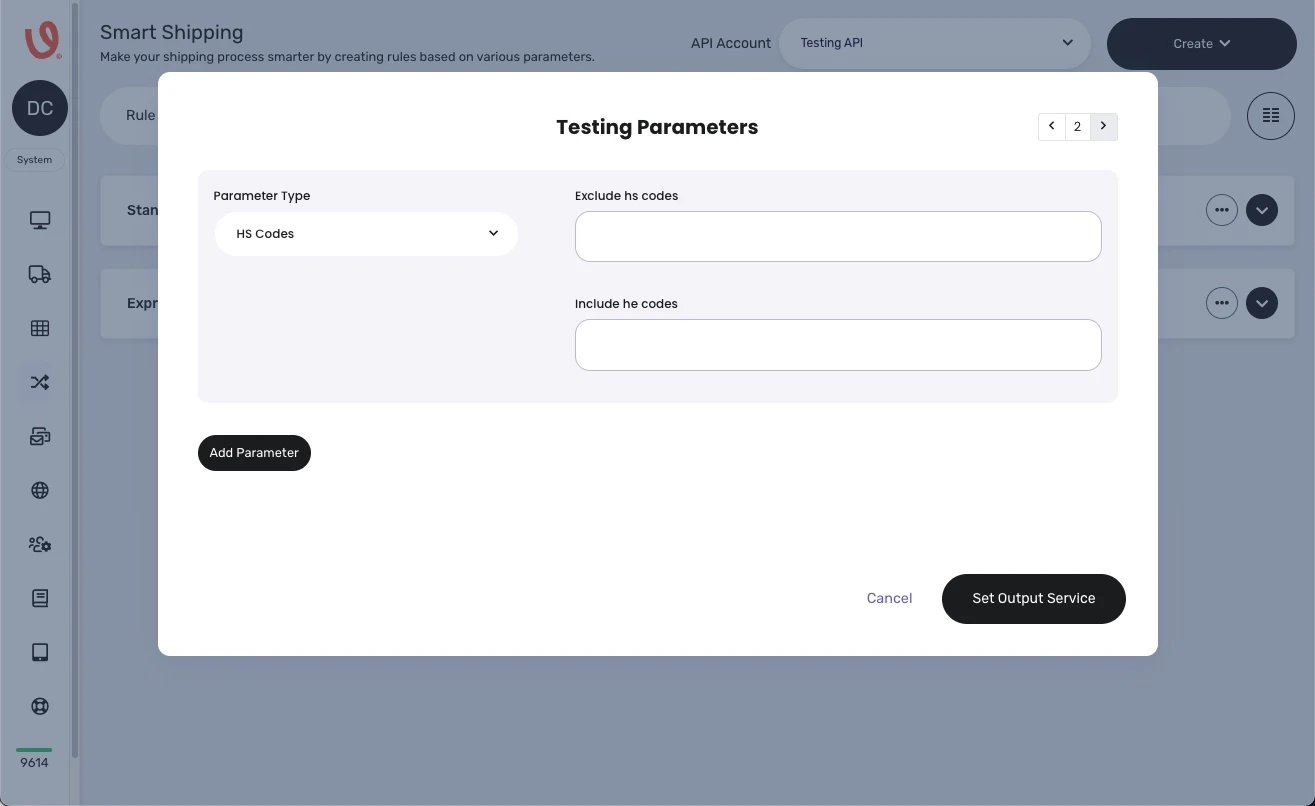
Click to Maximise the Image.
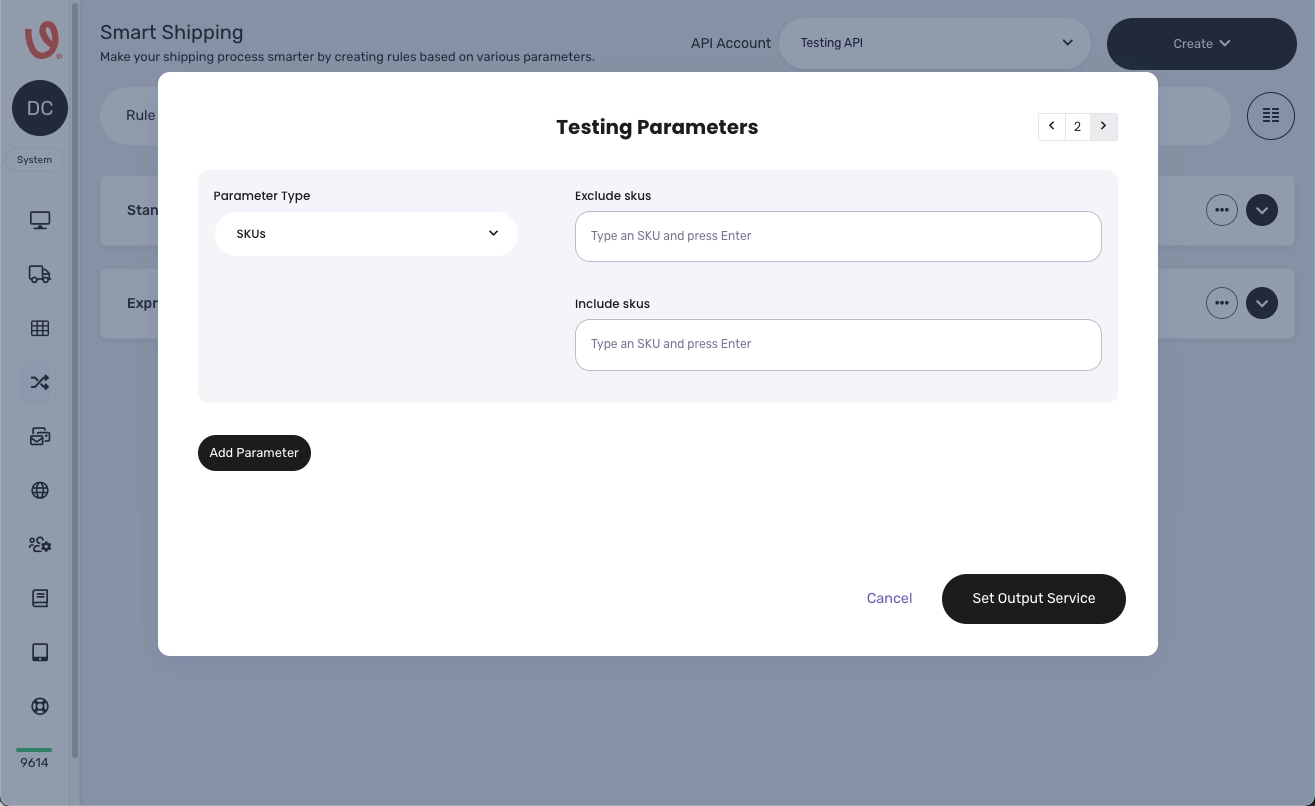
SKUs: Filter orders based on Stock Keeping Units (SKUs).
Exclude SKUs: Prevent processing of orders with specific SKUs.
Include SKUs: Process orders containing specific SKUs.
Click to Maximise the Image.
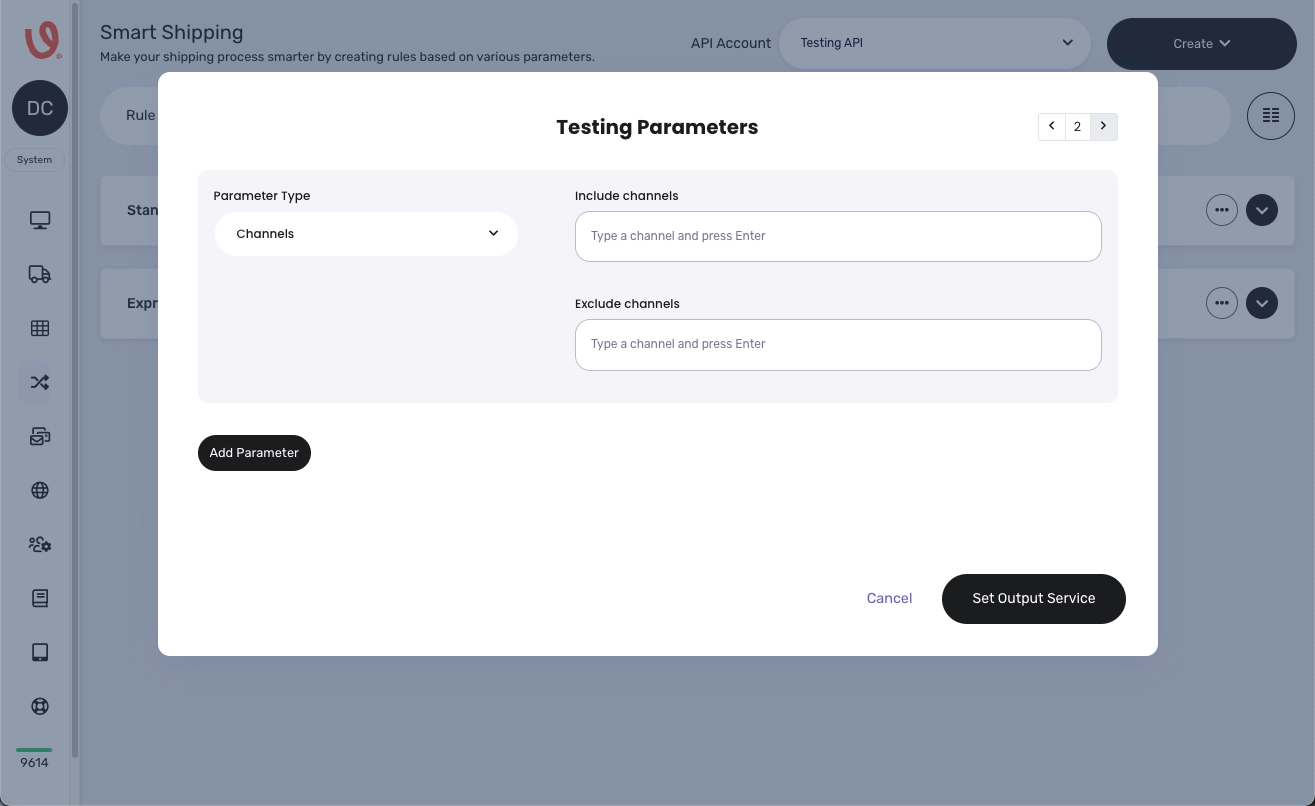
Channels:
Control shipping based on sales channel criteria.
Include Channels: Process orders from specified sales channels.
Exclude Channels: Prevent processing of orders from specified sales channels.
Click to Maximise the Image.
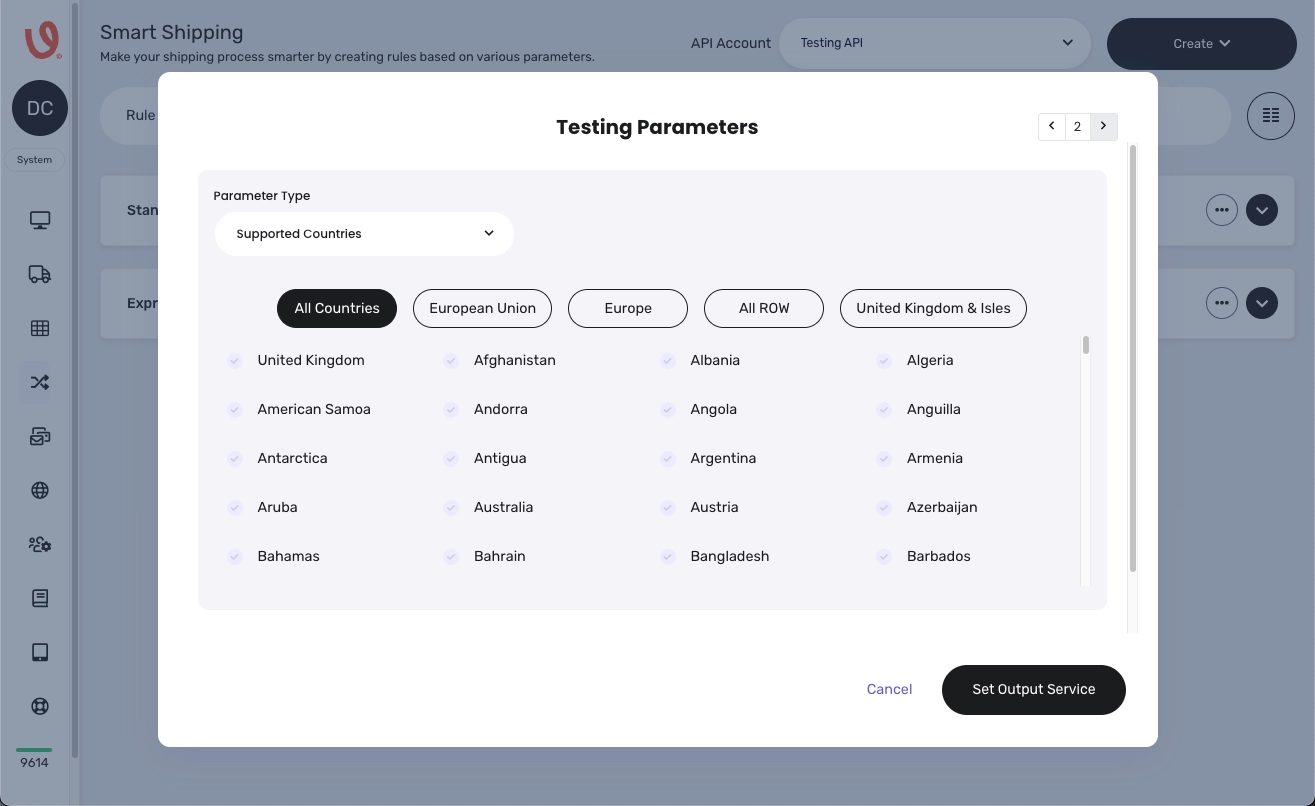
Supported Countries: Select eligible shipping destinations.
Select from a list of available countries, with the option to choose multiple countries.
Click to Maximise the Image.
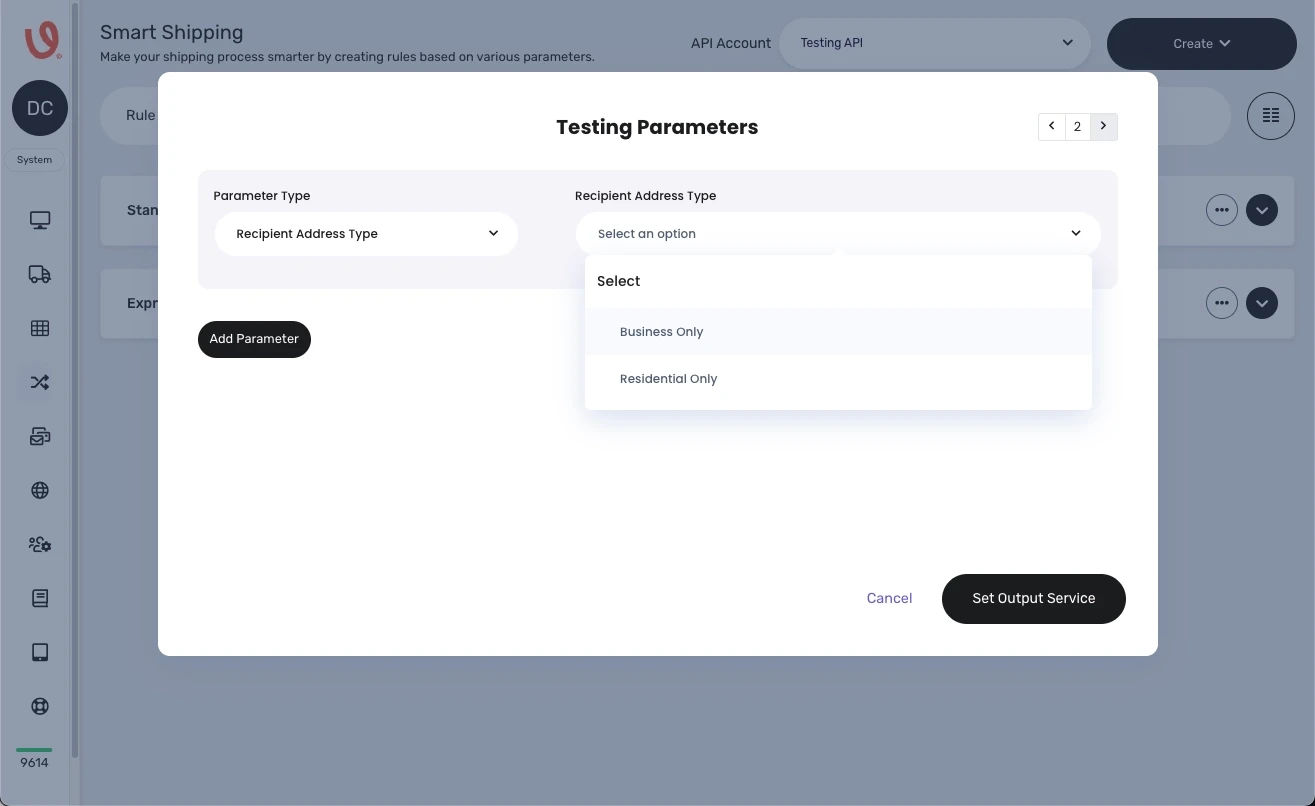
Recipient Address: allows you to control shipping rules based on the recipient's address type.
Business Only:
This option restricts shipping to commercial addresses.
Useful for B2B shipments or products requiring business-specific delivery.
Residential Only:
This option restricts shipping to private, residential addresses.
Ideal for B2C shipments or products intended for home delivery.
In essence, this parameter ensures that your shipping rules align with the nature of the recipient's address, optimising delivery and potentially avoiding issues with delivery services that have differing rules for business versus residential addresses.
Click to Maximise the Image.
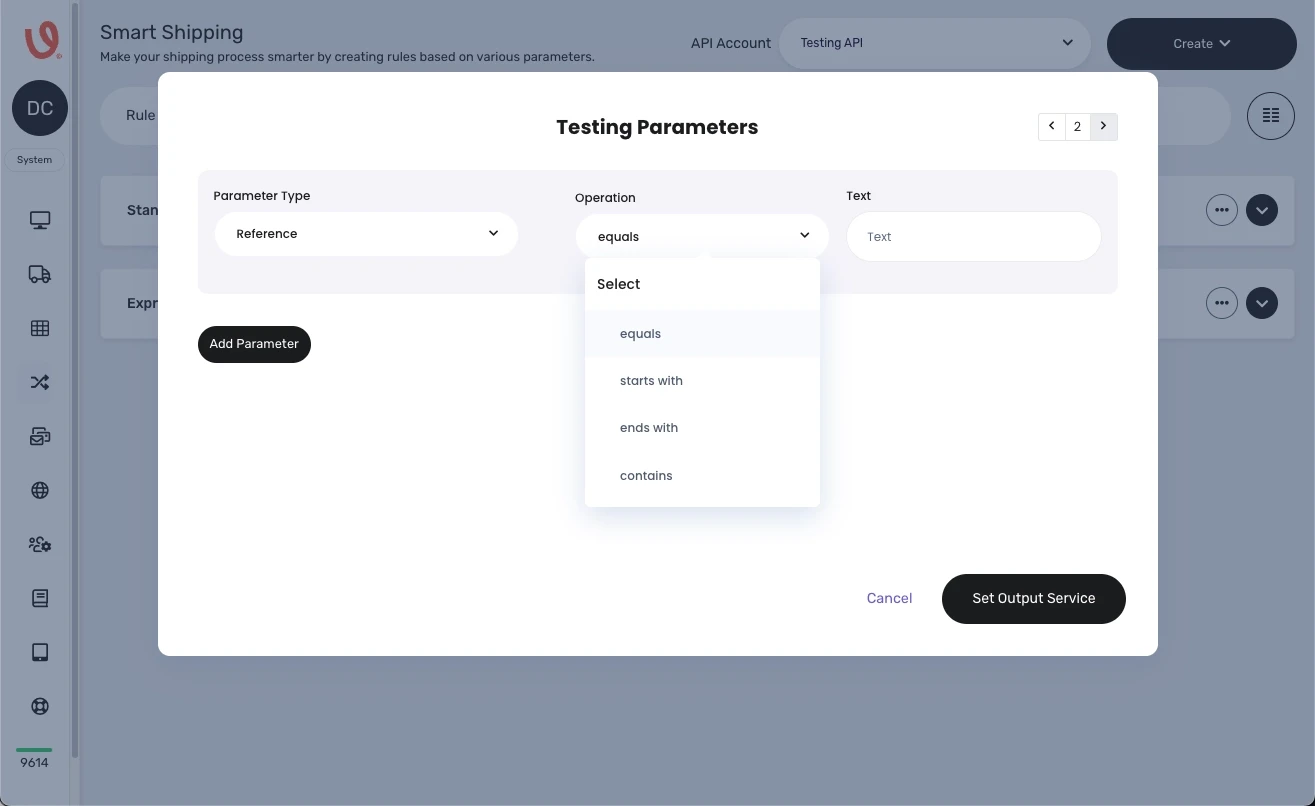
Reference: Match and process orders based on reference values.
Operation: Specifies how reference values are matched.
Equals: Matches exact reference values.
Starts With: Matches reference values that begin with specified text.
Ends With: Matches reference values that end with specified text.
Contains: Matches reference values containing the specified text.
Text: Specifies the text to be matched for each field.
Click to Maximise the Image.
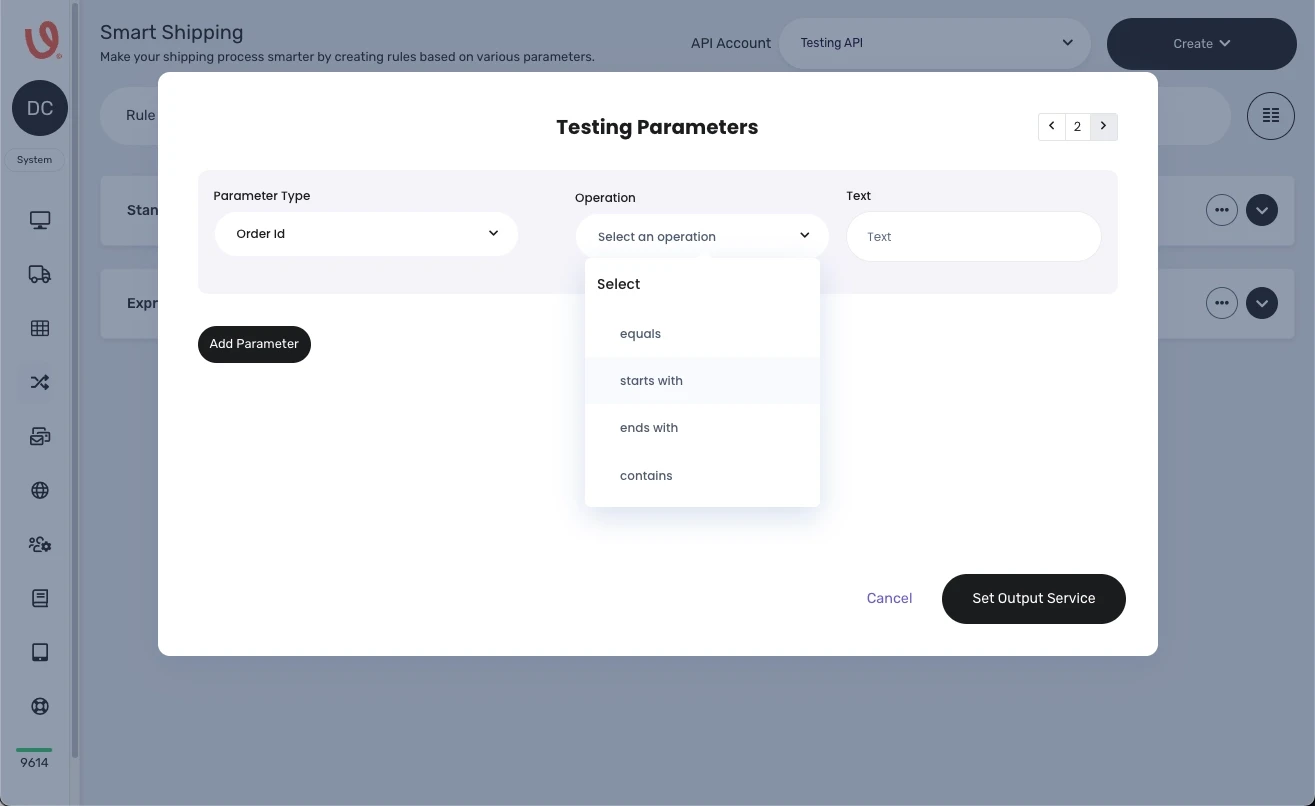
Order ID: Filter orders based on order ID values.
Operation: Specifies how order ID values are matched.
Equals: Matches exact order ID values.
Starts With: Matches order ID values that begin with specified text.
Ends With: Matches order ID values that end with specified text.
Contains: Matches order ID values containing the specified text.
Text: Specifies the text to be matched for each Operator.
Click to Maximise the Image.
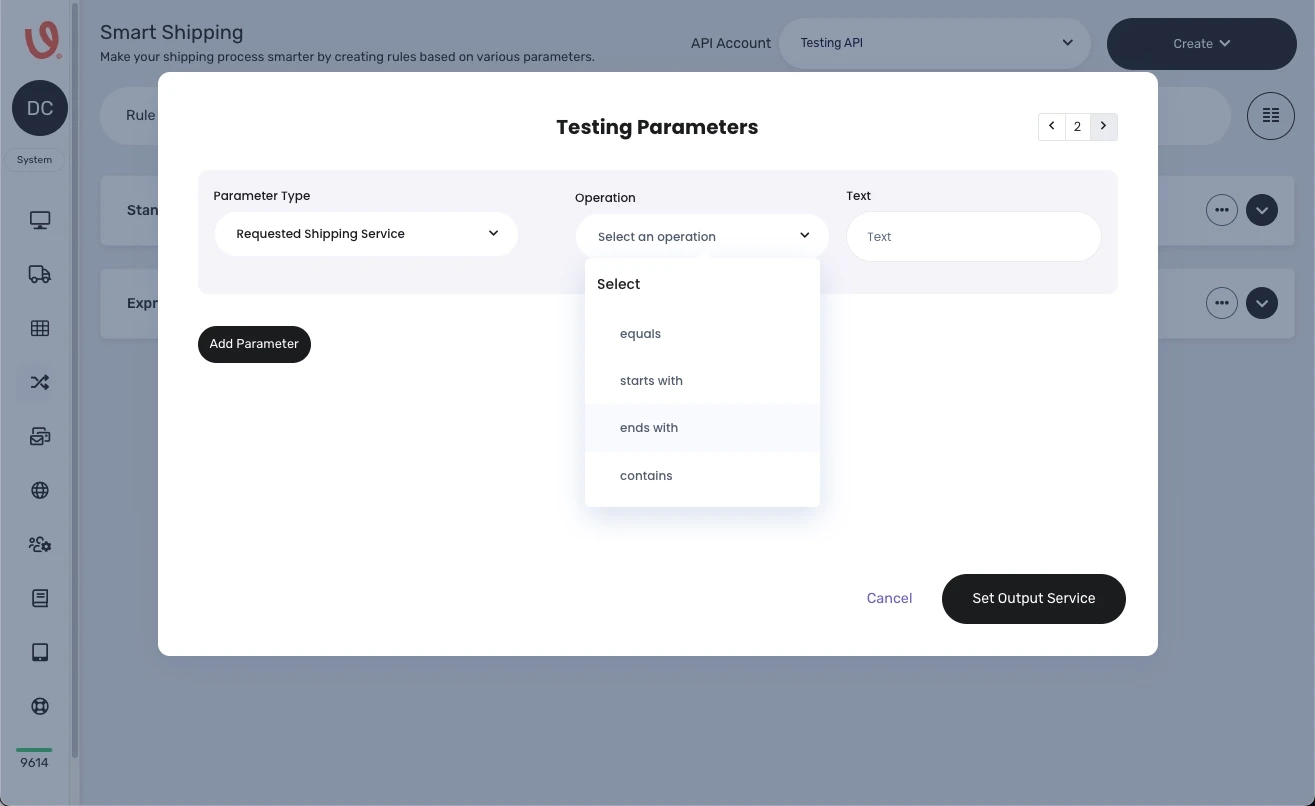
Requested Shipping Service: Offers control over the selection of shipping services.
Operation: Specifies how shipping service names are matched.
Equals: Matches exact shipping service names.
Starts With: Matches shipping service names that begin with specified text.
Ends With: Matches shipping service names that end with specified text.
Contains: Matches shipping service names containing the specified text.
Text: Specifies the text to be matched.
Click to Maximise the Image.

Next Steps & Support
📚 Need help? Explore more of our documentation, video walkthroughs or contact support.
With Voila, you will be set up for seamless, efficient shipping.
